

Most people use Apple Notes the same way they use a junk drawer.
Things go in. And over time, more and more things go in. But finding a specific thing when you actually need it? That can be a struggle.
If that sounds familiar, you're not alone. In fact, in the reader survey earlier this year, a number of you said you need help organizing all the stuff you have.
The good news is, Notes already has everything you need to stay organized. Most people just haven't been shown where to look.
Today, I want to help you fix that.
Let's skip the big folder overhaul. You don't need it. What you need are a few habits and a couple of features you might not know about, and you'll spend less time scrolling and more time finding.
Search is smarter than you think
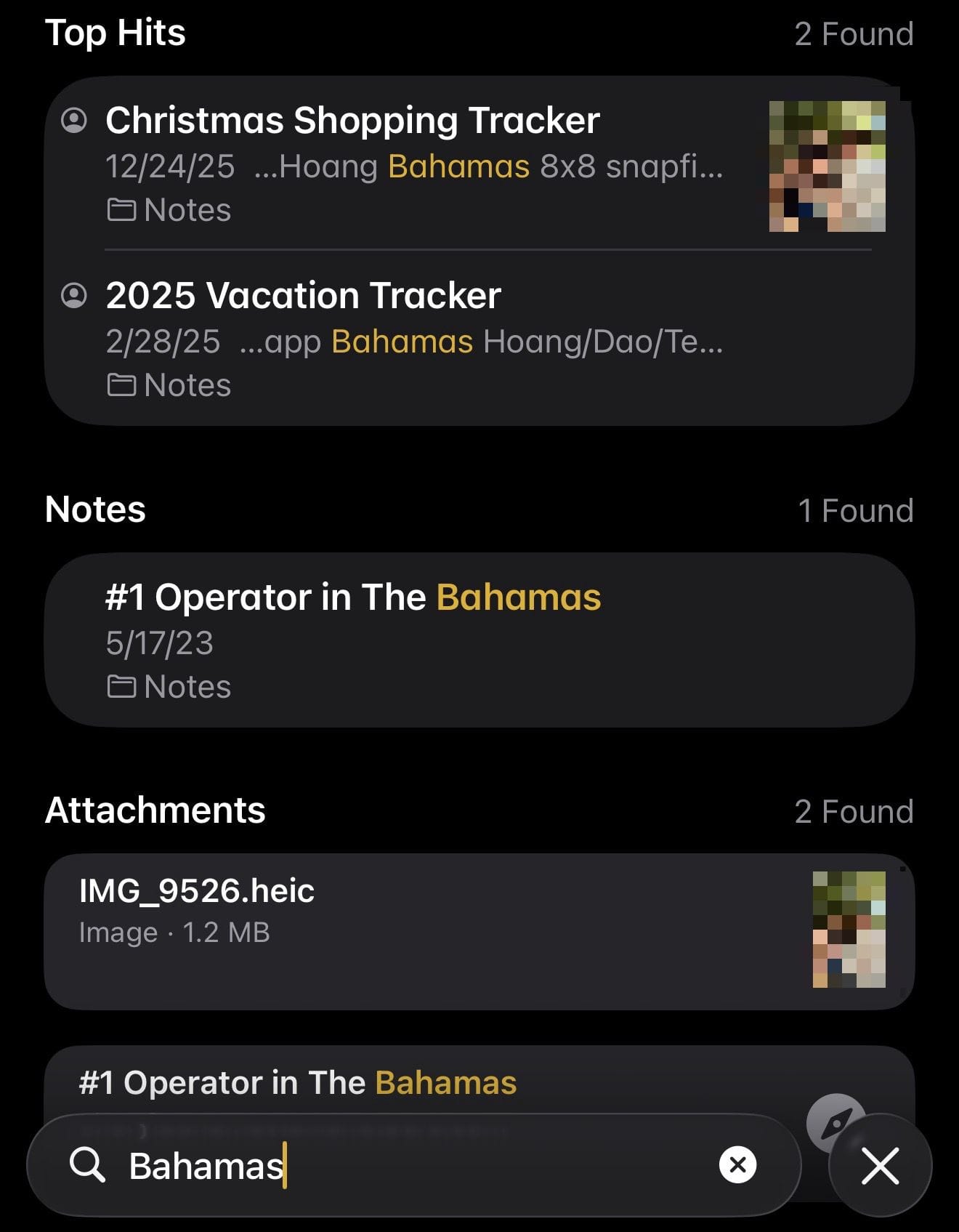
Most people type something into Notes search and assume it only looks at note titles. It doesn't.
Apple Notes searches inside your notes, including text in photos you've saved, handwritten text, and even scanned documents. If you photographed a receipt, wrote something by hand, or dropped a PDF into a note, search can find text in all of them.
The practical tip here: name your notes in ways that you'll remember to search for. If you're saving a restaurant recommendation someone texted you, don't call the note "Places." Call it "Dinner spots" or "Italian NYC". You can be descriptive, and this will help when you're looking at the list of notes in the search results. Search is your starting point, so give it something to work with.
Tags — the low-effort way to connect related notes
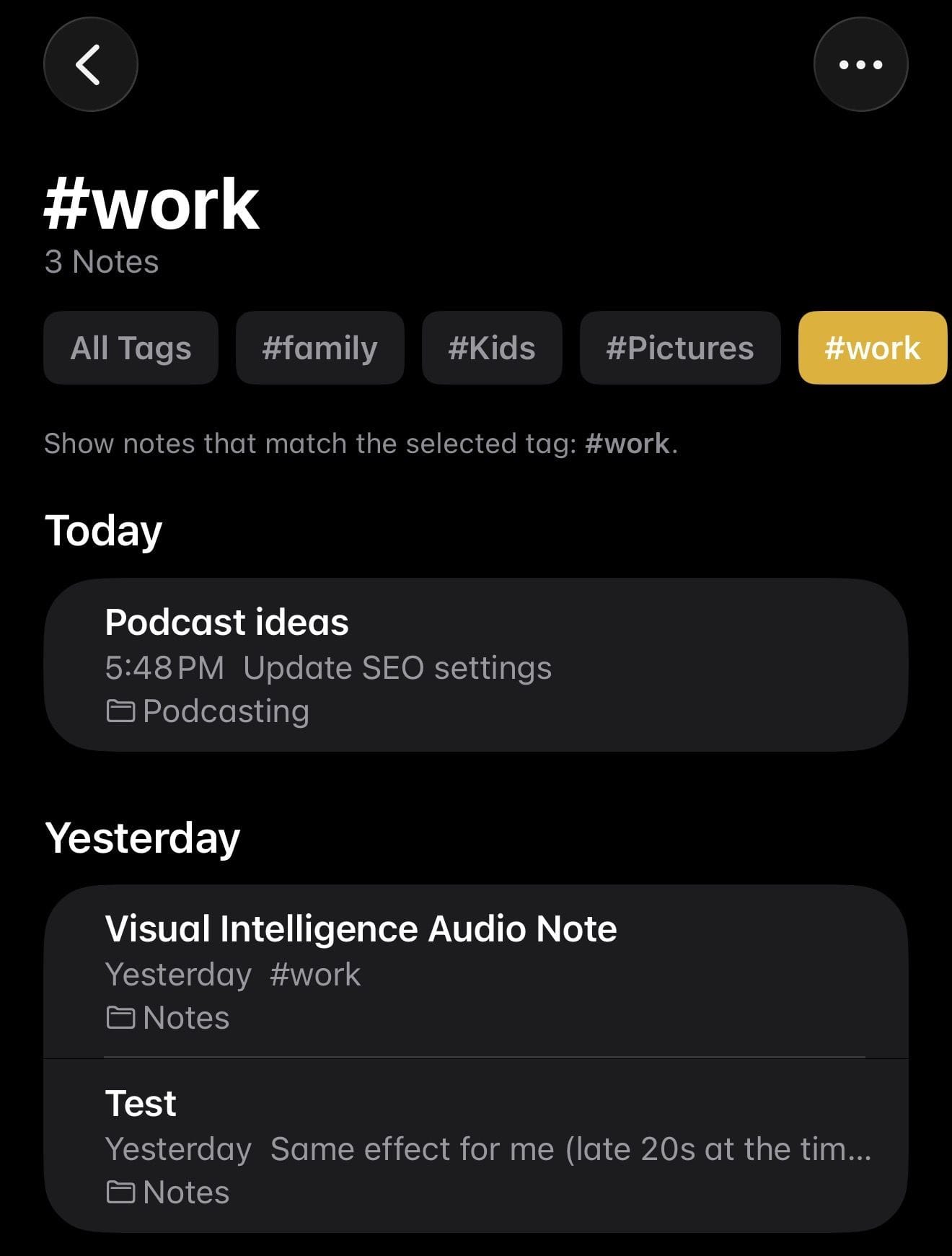
Tags in Apple Notes are simple. Anywhere in the body of a note, type a # followed by a word and that note is tagged.
What makes tags useful is that they work across folders. So if you have a recipe note in a "Cooking" folder and a note about a restaurant in a "Dining Out" folder, tagging both with #food means you can surface both at once — without reorganizing anything.
A few other starter tags that work well for most people:
- #todo — for action items scattered across notes
- #reference — things you look up repeatedly
- #waiting — things on hold, pending someone else
You don't need many. With tags, simplicity beats complexity, so try to resist the urge to overcomplicate things by making too many of them.
Smart Folders — let Notes do the organizing for you
Smart Folders are folders that automatically collect notes based on filters you set.
Go to the folder list in Notes, and tap New Folder. Give it a name, tap "Make into a Smart Folder," and then apply any Filters you want to use. To continue our theme, let's add a Tags filter and select the #food tag.
Notes will automatically collect every matching note, regardless of where it lives. The folder updates itself. You never have to move anything.
A good starting Smart Folder: create one for your most-used tag. If you've been tagging things with #recipes, make a Smart Folder for them. Suddenly, all your recipes are in one place, and you didn't have to reorganize a single note to get there. Beautiful.
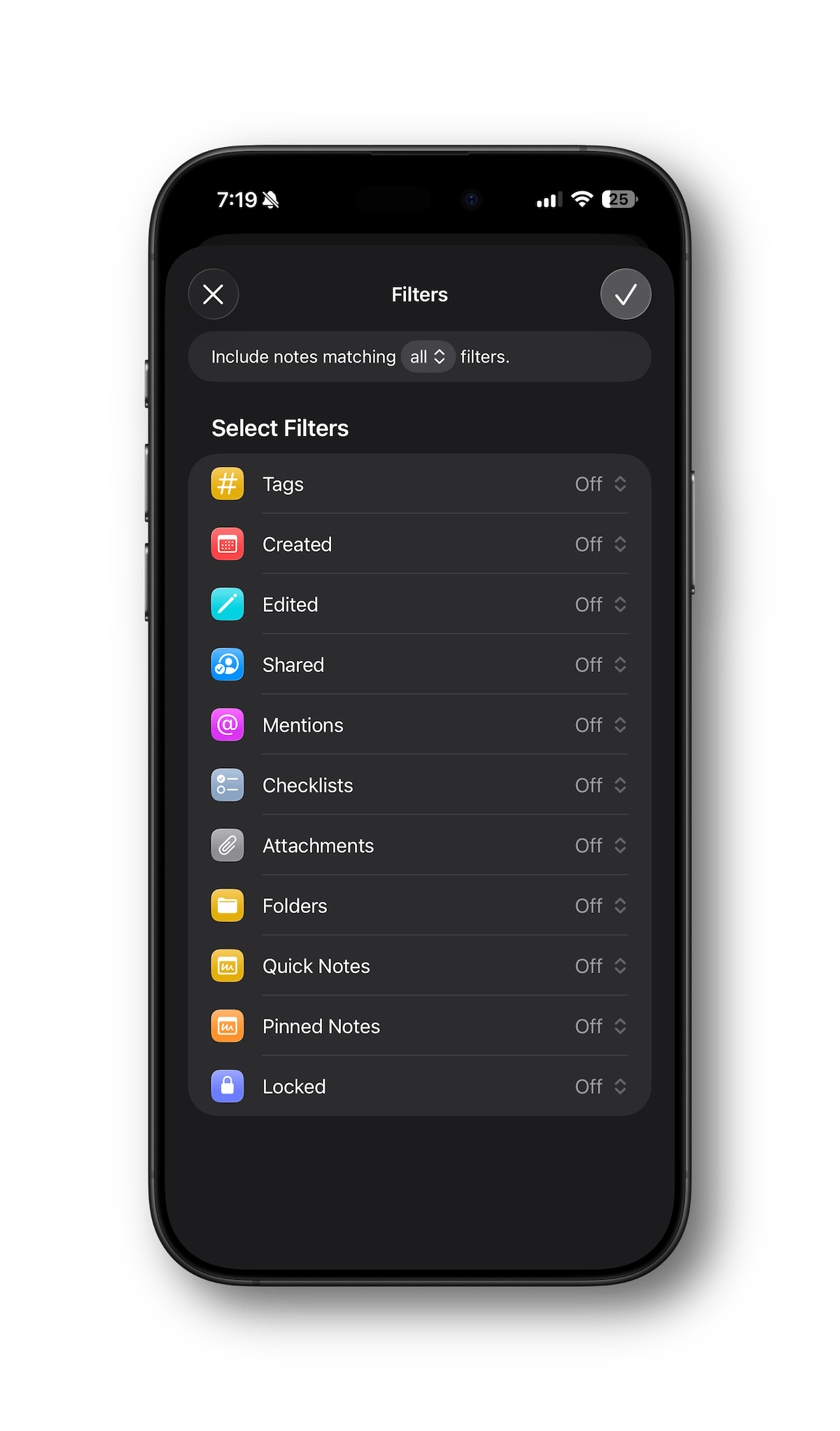
You can also build Smart Folders around other filters, such as notes created this week, notes with attachments, pinned notes and more.
Pin your most-used notes
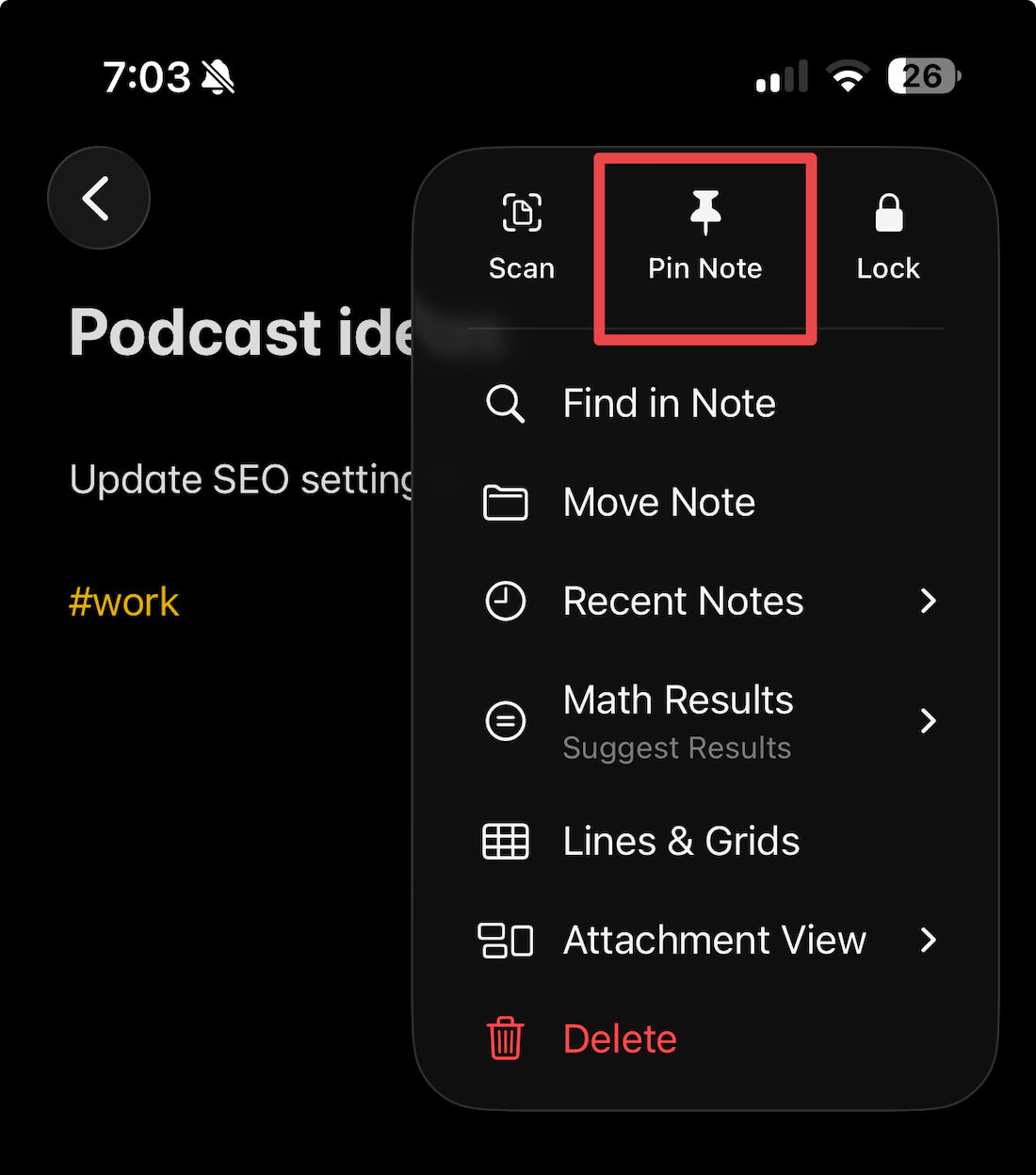
This one's simple but easy to overlook. Long-press any note and tap Pin Note, or you can swipe right and tap the Pin icon. If you have the note open, tap the "…" in the top right and tap Pin Note.
Pinned notes stay at the top of their folder, regardless of when you last edited them. They also appear at the top of the list when viewing all notes.
The best use for pinning will be your "always need this" notes: a grocery list, a running gift idea list, a note you check every week. Pin those, and they'll always be right there at the top when you open the app.
You don't need to do all of this today. Pick one thing: better note names, a tag or two, a Smart Folder, and try it this week. And let me know how it goes!