In partnership with


Image: Apple
Hey {{first_name|there}}!
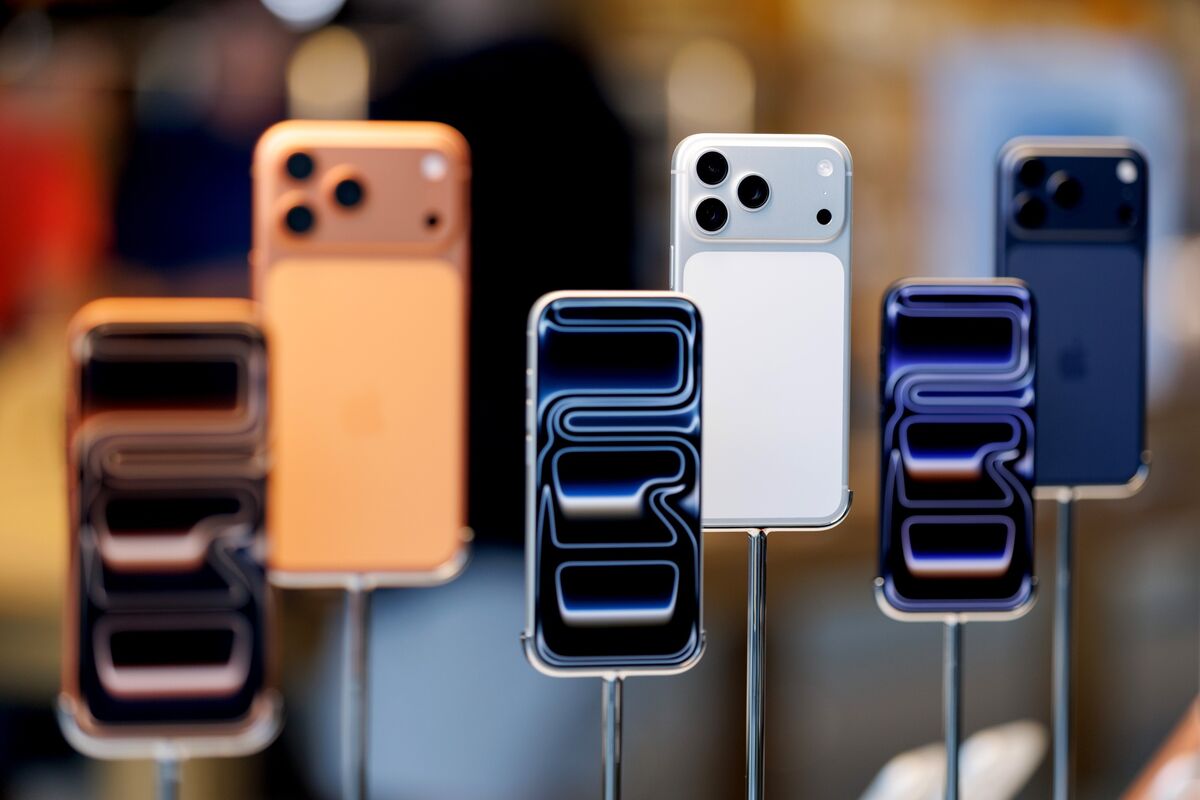
The first public betas of iOS 27, iPadOS 27, macOS 27 Golden Gate, watchOS 27, HomePod Software 27, and tvOS 27 are here (visionOS 27 doesn't have a public beta; it's a developer beta only).
That means it's time for my annual guide to whether you should install them, and the answer, as always, is it depends.
If you've ever muttered under your breath when your phone glitches out, imagine that, but potentially worse. That's beta life.
Here's what you can expect:
More glitches
Random crashes
Apps that don't work correctly (or at all)
Battery drain at the worst possible moment
That's why I say most people should skip the betas and wait for the official releases in the fall.
But if you're the adventurous type and know how to get out of a mess, or you need to test these systems for work or development, you can sign up for Apple's Beta Software Program here. Be sure to read through the FAQ and, most importantly, back up your devices before installing anything.
One extra reason to be careful this year
This round of betas also includes Siri AI (the rebuilt Siri I covered in the WWDC recap a while back). That's a bigger change than a typical yearly update, which means potentially more surface area for early bugs.

The new Siri AI and Apple Intelligence architecture.
Image: Apple
Do's and Don'ts of Beta Testing
If you decide to dive in, here are some tips to make the most of beta life, without losing your sanity (or your data):
✅ Things To Do:
File Feedback: Use Apple's built-in Feedback Assistant to report bugs, weird behaviors, or even things you really like. That's the whole point of public betas, to help Apple improve the final release.
Let Developers Know (Politely): If you notice issues with your favorite third-party apps, consider giving the developer a heads-up. Many appreciate early reports, but remember: don't demand fixes for betas. Most developers wait until Apple's final release before officially supporting new systems, and they'll be working hard for the rest of the summer to get their apps ready.
Test Apps in Beta: Some developers will invite users to help test early versions of their apps as they are updating them for the new OS. If you're interested in testing your favorite apps, keep an eye on their social channels or newsletters.
🚫 Things Not To Do:
Don't Install on Critical Devices: If you can't live without it, don't do it. Save the betas for secondary devices.
Don't Expect Perfection: Beta software is unfinished by definition. If glitches trigger you, this life ain't for you.
Don't Skip Backups: Make sure you back up everything before you start. You'll thank yourself later.
What am I installing?
I've installed macOS Golden Gate on my MacBook Air M5 at work, iPadOS 27 on my iPad Pro M5 at home, and iOS 27 on my iPhone 16 Pro Max. It's only been a few days, but so far I've had random app crashes (as expected), user interface glitches, and a few other oddities. Like I said earlier, that's all part of beta life.
I'm waiting for the new Siri's indexing and optimizing process to complete, so my experience with it has been limited, but I can say it's already showing some promising signs.
Earlier this week, one of my credit cards was blocked for potential fraud. I asked Siri if I had any emails about a problem with my card, and it surfaced the email from the bank, plus an email from a vendor that had an issue processing payment after the card was blocked.
Then I asked “What did Tom have to say in his newsletter today?” and it provided a nice summary based on a test message I had sent.

It’s still early and my experience is limited, but Siri is showing some promising signs.
It’s still way too soon to know how this will turn out, but I'm optimistic that the new Siri will be good!
Much more to come over the next several months here and on the podcast!
Your prompts are leaving out 80% of what you're thinking.

When you type a prompt, you summarize. When you speak one, you explain. Wispr Flow captures your full reasoning — constraints, edge cases, examples, tone — and turns it into clean, structured text you paste into ChatGPT, Claude, or any AI tool. The difference shows up immediately. More context in, fewer follow-ups out.
89% of messages sent with zero edits. Used by teams at OpenAI, Vercel, and Clay. Try Wispr Flow free — works on Mac, Windows, and iPhone.
🎙️ On the Latest Basic AF

Listen to and follow the show in Apple Podcasts, Spotify, all the other podcast apps, as well as on YouTube and YouTube Music.