

We just got back from a week in Rehoboth Beach, and I lost count of how many times I reached for my phone.
Directions. The hotel confirmation. Potential dinner spots. Photos of the kids at the water. And messaging…lots of messaging.
Your phone does a lot of work on a trip, and a little setup before you leave makes sure it's actually ready for it all.
Here's my pre-trip list. None of it takes long, and every item saves you a specific headache later.
Keep the trip in one note
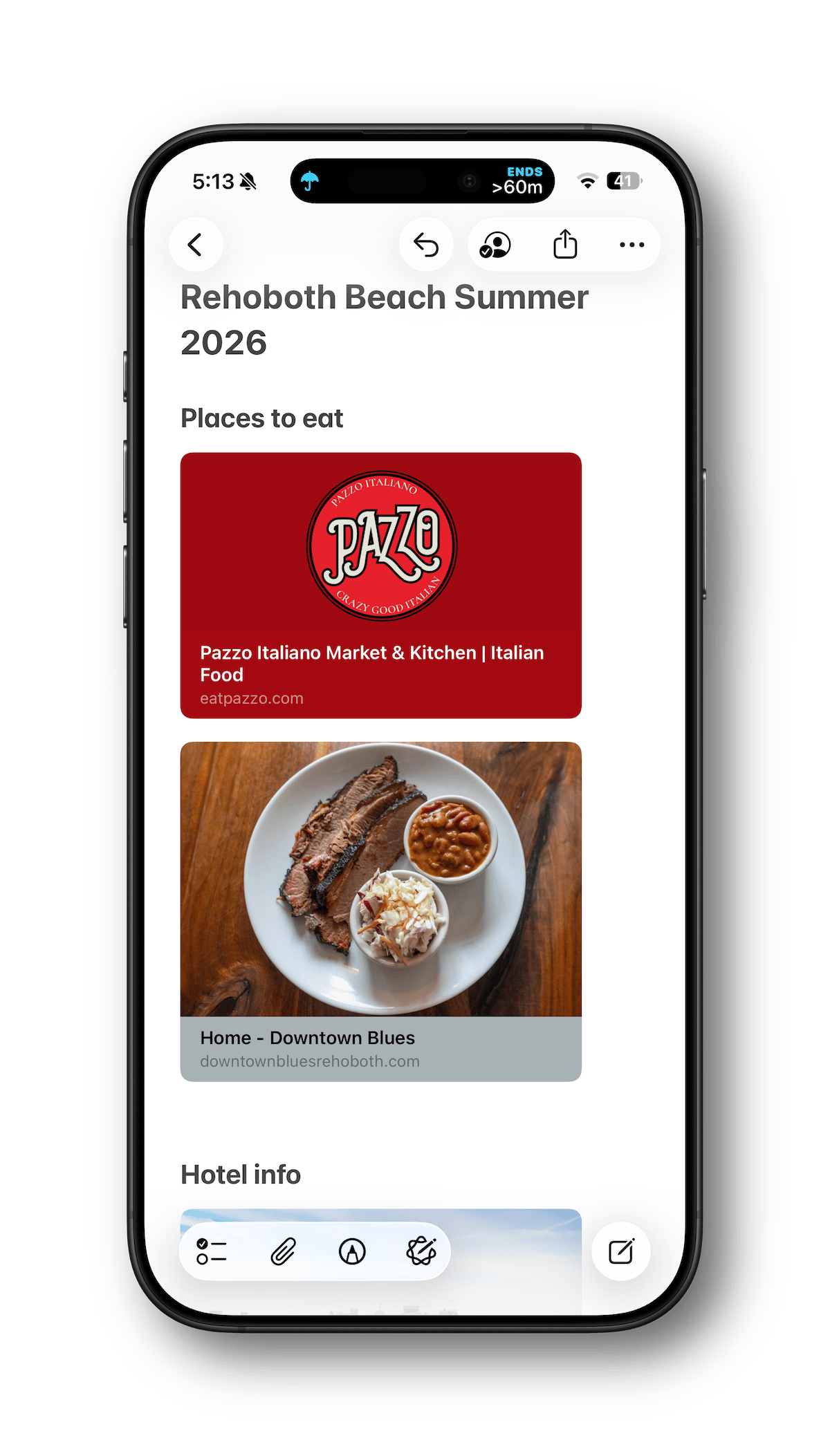
As we were trip planning, I made a single note with the hotel address and website, confirmation numbers, what we needed to pack, and the new restaurants we actually wanted to remember to try. Nothing fancy really, just everything in one place I could find without digging through email or messages.
The trick is putting it somewhere you'll actually reach for it. I pinned the note to the top of the Notes list (swipe right on any note and tap the pin icon) so it's the first thing I see when I open the app.
If you'd rather, Reminders works just as well for checking things off as you pack. And if you're traveling with other people, share the note with them so everyone can add to it. That way, nobody is the sole keeper of the plans.
Set up the group chat before you go
If you're traveling with others, start a group chat in Messages and add everyone before the trip even starts. It sounds obvious, but having a single thread instead of juggling separate conversations and losing track of who said what is the difference between "wait, where is everybody?" and just glancing at your phone.
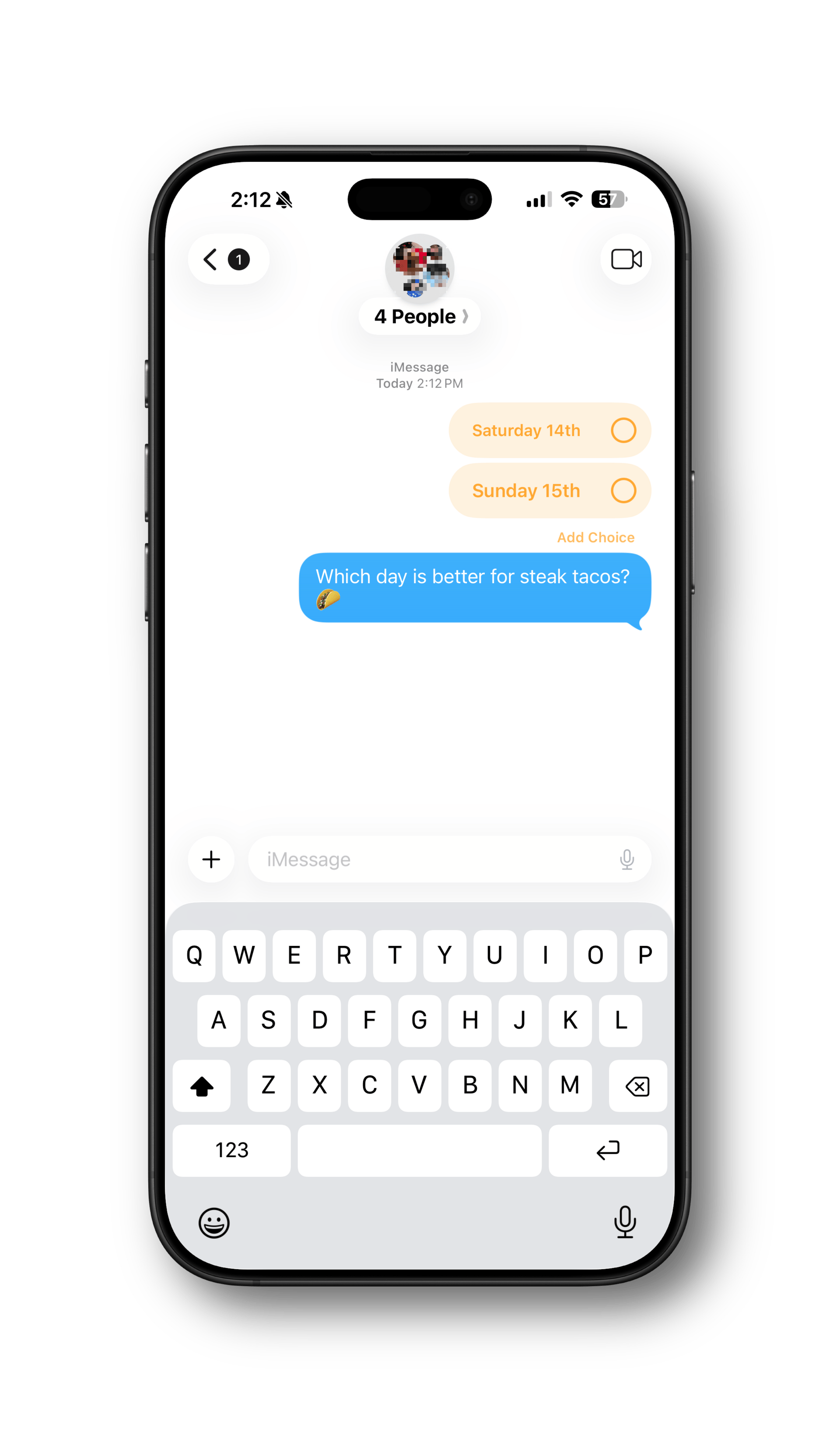
Once the group's together, it's the perfect spot to use polls. Where are we eating tonight? Beach day or shopping? Drop a quick poll in the chat and let everyone tap a choice, instead of wading through 40 messages where nobody commits to anything. I wrote a full rundown on how polls in Messages work — it's one of those small features that really earns its keep the moment you're trying to coordinate a group.
One heads-up: polls only work on iPhones running a recent version of iOS. If someone in the chat is on Android, they'll still see your regular messages just fine — they just won't be able to vote.
Share one album with your group
If you're traveling with family or friends, create a Shared Album in Photos and invite them to it. Then everyone drops their photos into the same place instead of texting pictures back and forth for a week.
To set one up: open the Photos app and go to Collections > Shared Albums, tap Shared, then the + button under Albums, and choose New Shared Album. Give it a name, invite your travel companions, and you're done. Anyone you invite can add photos right from their own Camera Roll.
It's the easiest way I know to get home with everyone's photos from the trip, not just the ones you happened to take yourself.
Support for Android and Windows is currently limited, but will be significantly improved in the new operating systems later this year.
Bonus tip: One quick habit to build into your trip: wipe your camera lenses before you start shooting each day. A soft cloth like the kind that comes with glasses or sunglasses works perfectly. Sunscreen, greasy fingers from lunch, dust from a trail... it all quietly accumulates on the lens and diminishes photo quality.
Be ready with power
Travel days can be brutal on a battery. You're running navigation, the screen's cranked up in the sun, and your phone burns extra power hunting for signal in spots where there isn't much.
Throw a battery pack in your bag; even a basic one will get you through a long day. Just as important: make sure you've got the right cables for everything you're bringing, both in the car and in your bag. Toss in a spare too. Cables fail at the worst times, and they're the easiest thing to leave behind in a hotel room.
A multi-port charger simplifies which power adapters to take. I like the PowerPort III from Anker and it has enough juice to charge your iPhone, iPad, Apple Watch, and a MacBook.
If you want to avoid cable clutter, the UGREEN W711 3-in-1 charger is a great option. I received one as a gift last Christmas and it's been great.
If you're headed somewhere remote, download the map first
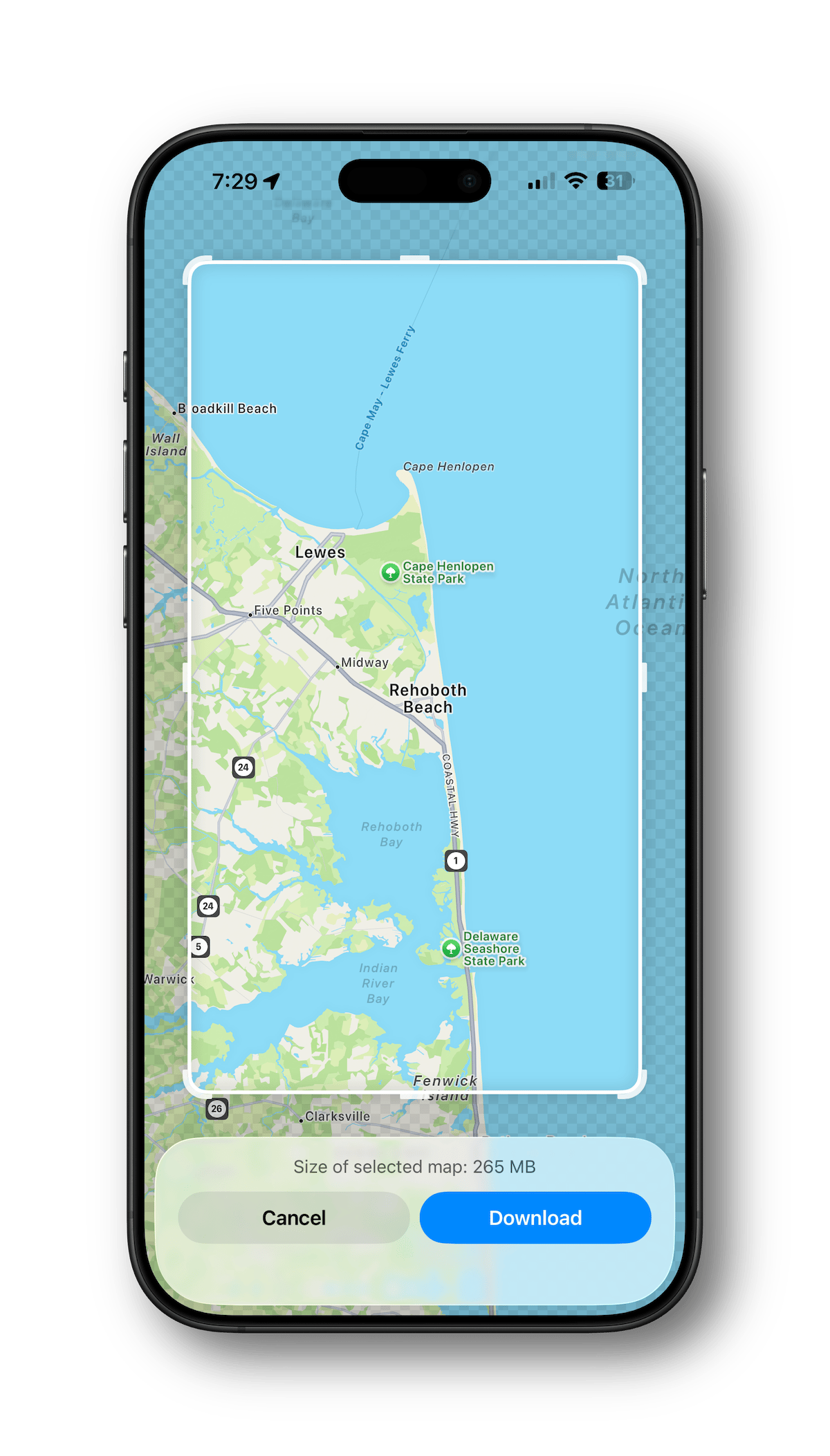
Most trips, you'll have signal when you need it. But if you're heading to the mountains, or anywhere that involves long stretches of remote highway, it's worth spending five minutes on this one before you leave.
Open Maps, search for your destination, tap the result, tap Download, and Maps will save that whole area to your phone. Once it's there, directions and search work even when you've got no signal at all.
Quick note: Offline maps require iOS 17 or later. If you haven't updated recently, do that before you leave, too.
And if you're heading somewhere truly remote, a paper map is still a great safety net. If your phone gets lost or damaged, you'll still be able to find your way.
Drop an AirTag in your bag
If you've got an AirTag, the night before is the time to toss one in your suitcase. Then if a bag wanders off, you can open Find My and see roughly where it is.
Worth knowing: an AirTag isn't a live GPS tracker. It quietly borrows the signal from nearby Apple devices to report its location, so in a busy airport it updates constantly — but on an empty country road, it might go quiet for a while. It's great for "is my bag still at the hotel or did I leave it in the car?" Just don't expect a moving dot tracking it down the highway in real time.
One more, for the planners — Apple Invites
This is a bonus for whoever ends up organizing the group.
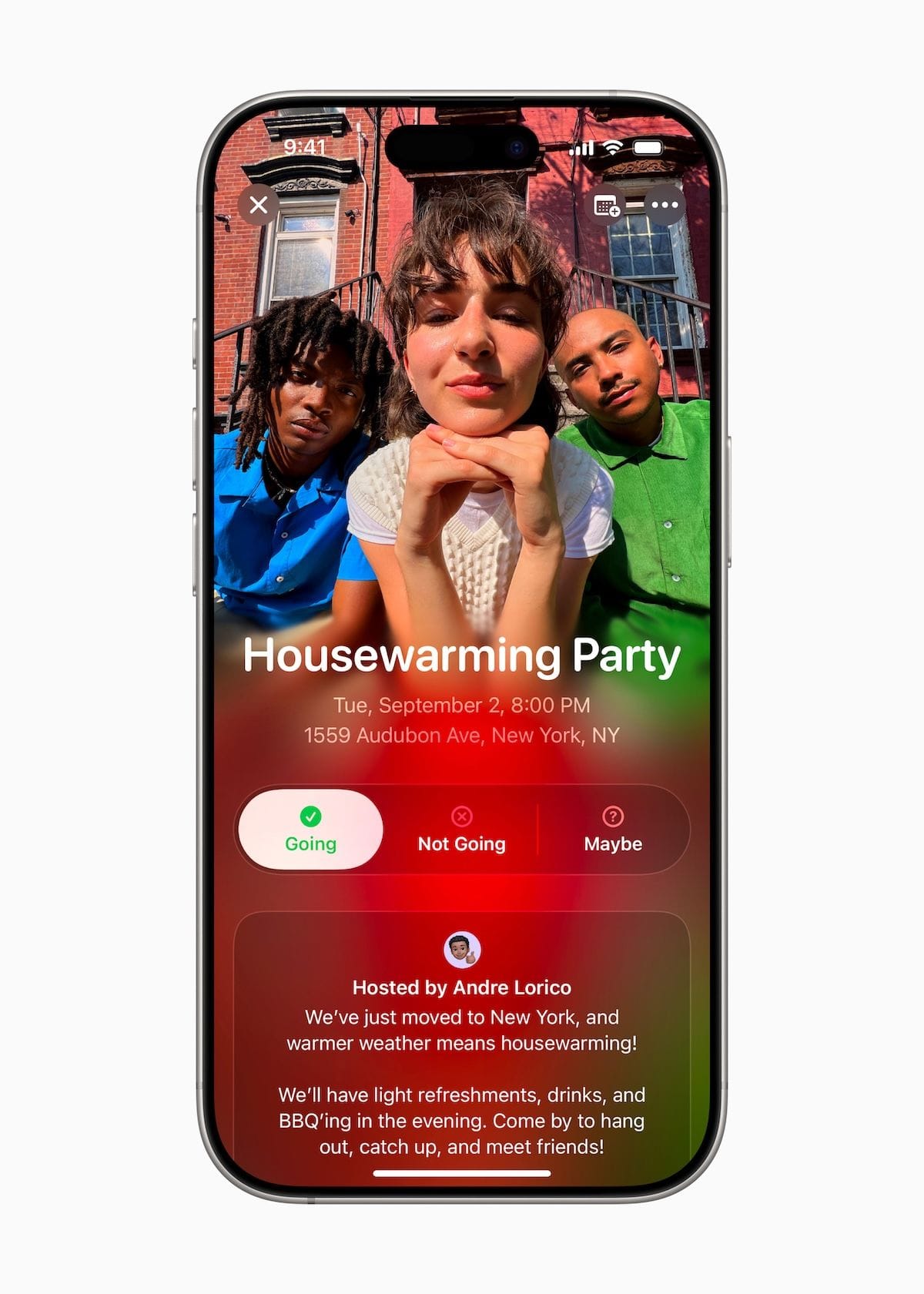
Apple's Invites app lets you create, send, and manage event invitations. You can customize the background image, see who's coming as people RSVP, and collaborate on shared photo albums and playlists with everyone you invited.
Two things worth knowing up front: Invites is a separate free app (you can also use it at iCloud.com), so you may need to download it. And to create an invite, you need iCloud+, the paid iCloud storage plan that many of us already have. Anyone you invite can RSVP for free in a web browser, with no Apple account required, so nobody on your list gets left out.
That's the whole list. None of it is particularly exciting, but that's sort of the point. Simple and effective wins more times than not.