

How many times have you had a great idea and thought to yourself I'd better grab my phone so I can write that down!
Quick! Find your phone. Open the app. Find the right note. Tap in to bring up the keyboard. Now type. And then..."Wait...what was I going to write?"
If you're like me, the window between "I should remember this" and "okay, where do I put it" can be just long enough for the thought to disappear.
Lucky for us, Apple Notes has a few ways to shortcut all of that, and you probably have at least one of them available right now without doing a thing.
Add a Quick Note Control to Your Lock Screen (or Control Center)
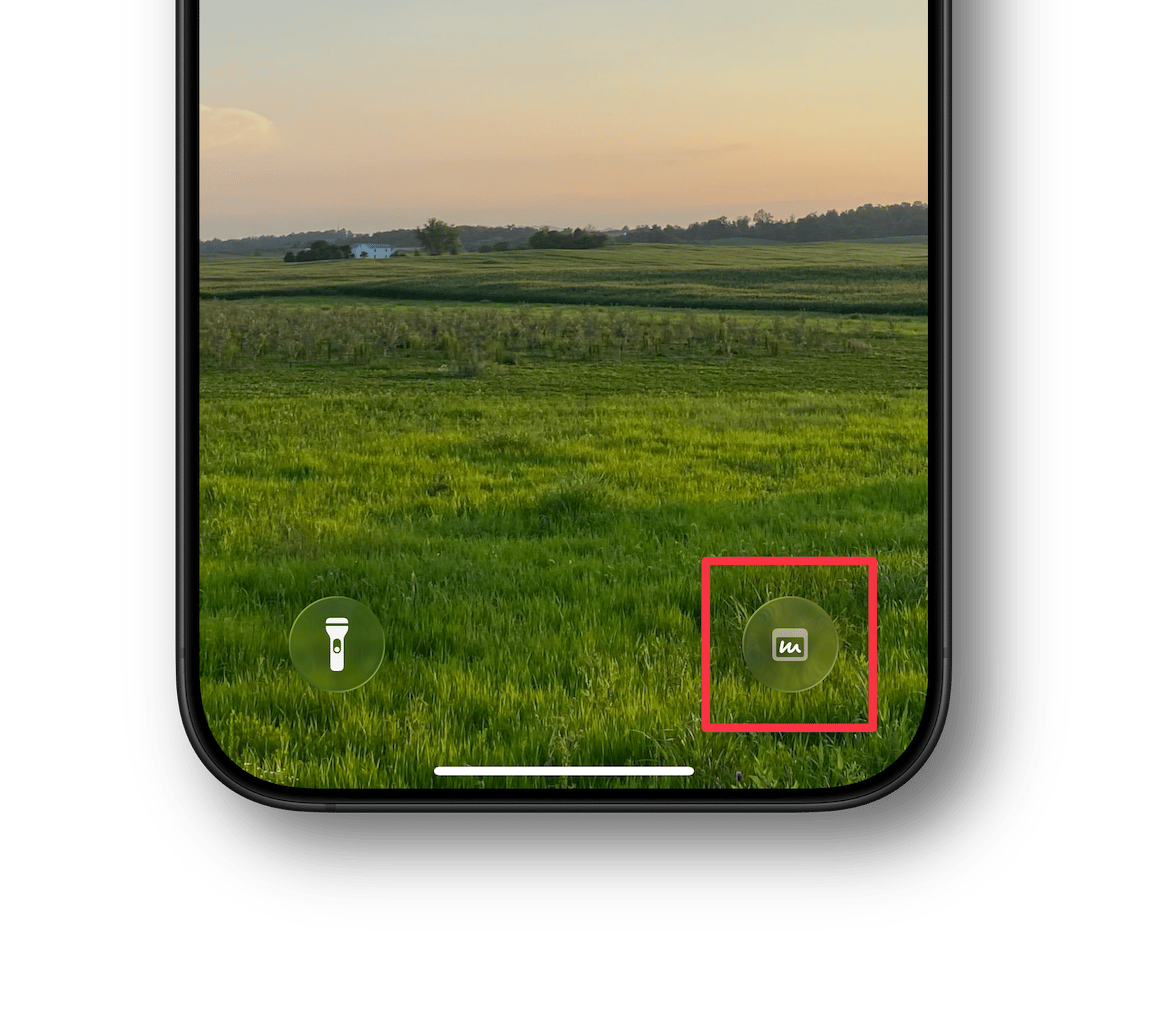
You can add a Quick Note control to your iPhone lock screen that opens a new note instantly. When inspiration hits, tap and type.
Here's how to set it up:
- Press and hold your lock screen until the Customize button appears.
- Tap Customize, then tap one of the circular buttons in the bottom left or right. If you already have a control in those spaces, tap the minus (-) symbol to remove it. Otherwise, tap the plus (+) symbol to add a new control.
- Tap in the Search Controls field at the top of the screen and enter Quick Note.
- Tap on Quick Note in the search results to add the control.
- Tap Done.
Next time a thought strikes, one tap and you're writing. That's it.
If your lock screen is already set up the way you like it and you'd rather not change it, there's another option: add a Quick Note button to your Control Center. Swipe down from the top-right corner of your screen, tap the button, and you're straight into a new note.
Here's how to add it:
- Swipe down from the top-right corner of your screen to access Control Center.
- Tap the + button in the upper left to add a new control.
- Tap + Add a Control at the bottom of your screen.
- Tap in the Search Controls field at the top of the screen and enter Quick Note.
- Tap on Quick Note in the search results to add the control.
- Tap anywhere in the background to finish.
Bonus tip: Tap and hold on a control, and then drag it, to rearrange the layout. You can use the grab bar on the lower right side of the control to resize it.
Use the Share Sheet
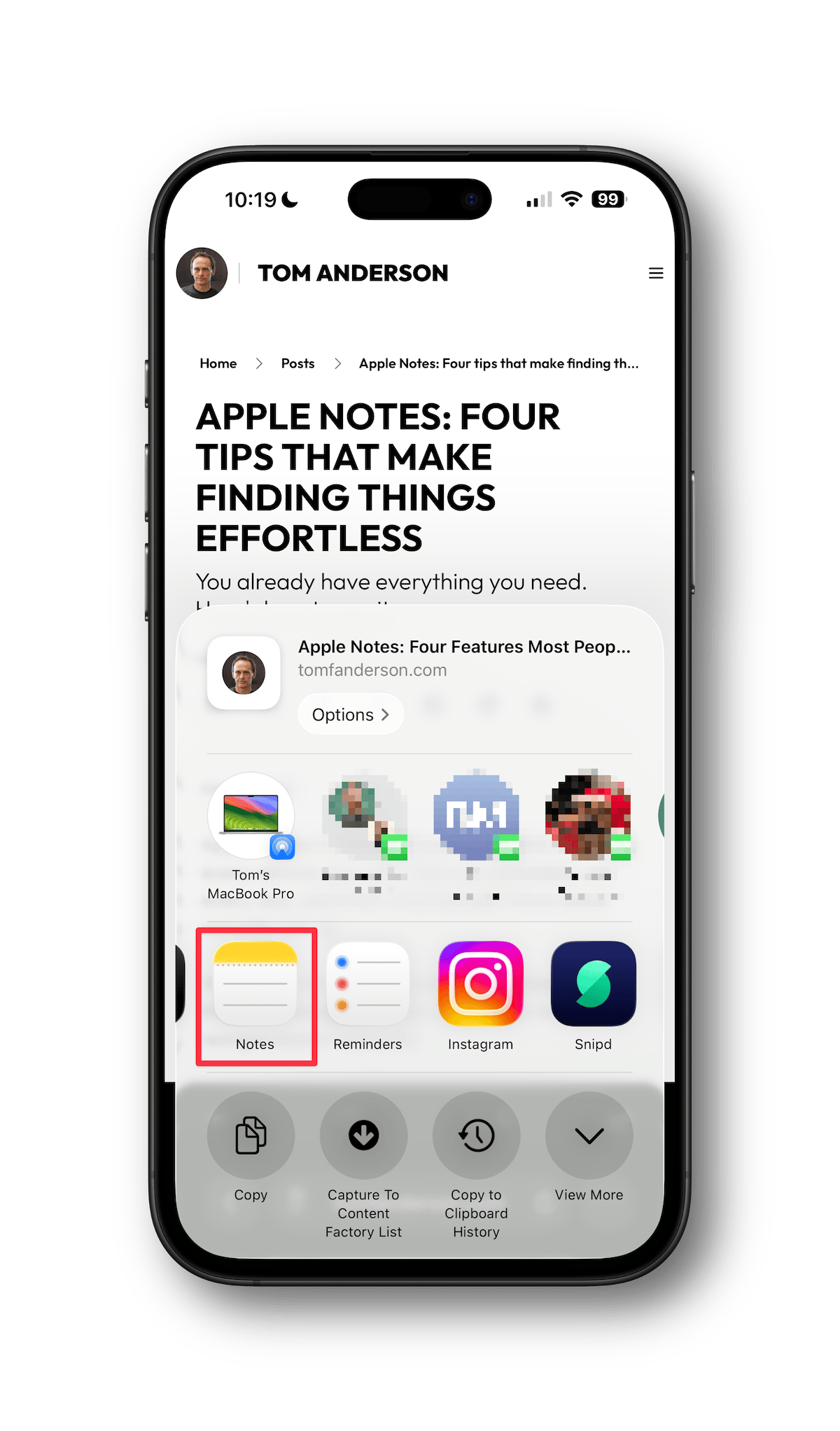
You're in Safari reading an article you want to save. Instead of copying the link, switching to Notes, and pasting it, tap the Share button (the box with the arrow pointing up), locate Notes in the list of app icons and tap on it.
Apple Notes will save the page title, the URL, and a preview of the content. Before saving it, you can name the note and add some details. You can save these as new notes, or add on to an existing note.
The same Share button method works in Photos, Maps, and many other apps.
Just Tell Siri
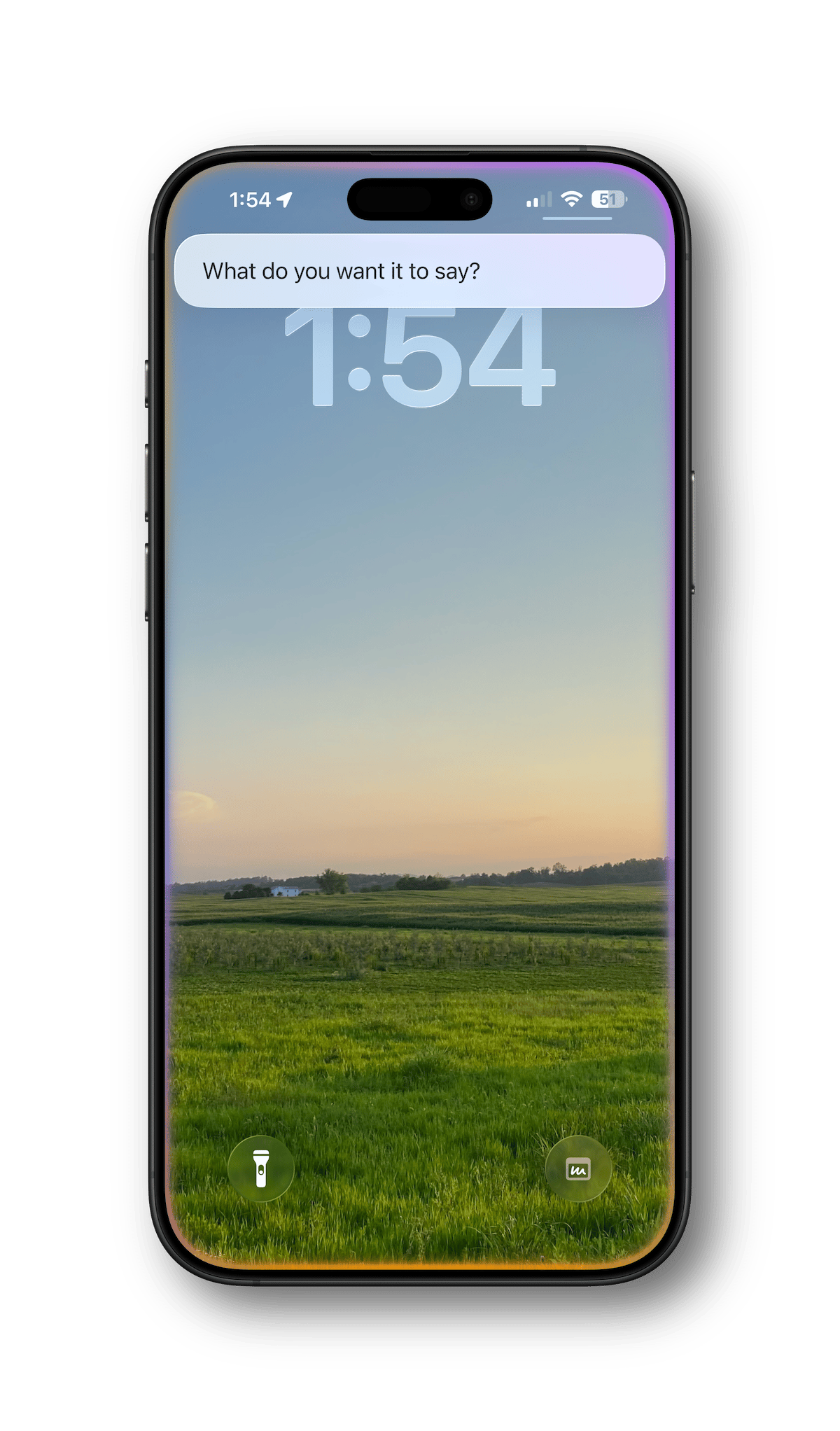
I almost didn't include this one because Siri can be so hit-or-miss, but it's good to know, especially when your hands are full or you're driving.
Just say: "Hey Siri, add to my notes…" and then say the thing. In typical Siri fashion, I've had a few occasions where this doesn't work as expected.
I found that if I paused after saying "...add to my notes..." and let Siri ask its follow-up "what do you want it to say," the results were more consistent, so try that if you have any problems.
Siri will drop the note straight into your Notes list. When it works, it's an easy way to get your thoughts into a note so you can go back to them later.
Add a New Note Using Your Apple Watch
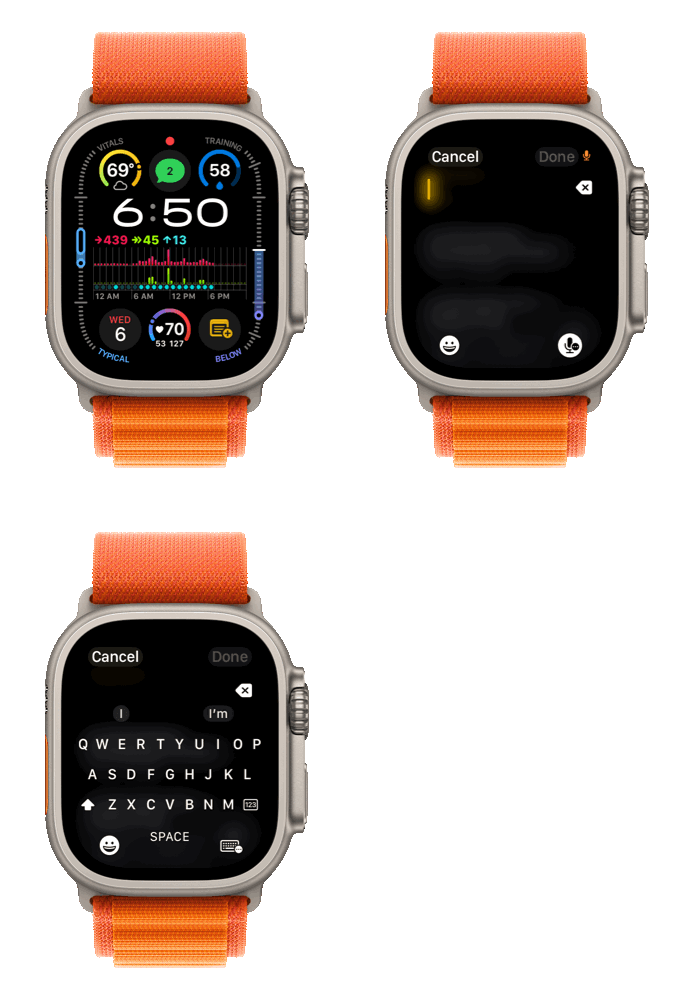
Apple Watch users get a bonus option. You can add a New Note complication to your watch face that opens a blank note on your watch with a single tap — handy for a quick thought when your iPhone isn't in your hand. This was introduced in watchOS 26.
Here's how to set it up:
- Tap and hold your watch face to enter edit mode.
- Tap Edit.
- Swipe to the Complications screen.
- Select the complications slot you'd like to use by tapping on it.
- Find Notes in the list and then tap on New Note.
- Press the Digital Crown to leave editing mode.
When you are ready to add a note, tap on the complication. You can dictate the note, or enter it using the keyboard on the Apple Watch.
Keep It Simple
Keep in mind, you don't need to try all four of these at once.
Pick the one that best fits how you actually use your devices, try it a few times, and adjust as needed. Feel free to hit me up if you have any questions!
We'll be spending more time with Apple Notes over the summer!
If you missed it last time, here are four tips that make finding things effortless.